1 Apache服务器
1.1 概述
Web(World Wide Web)是目前最常用的Internet协议之一。目前在Unix-Like系统中的web服务器主要通过Apache服务器软件实现。为了实现运营动态网站,产生了LAMP(Linux + Apache +MySQL + PHP)。web服务可以结合文字、图形、影像以及声音等多媒体,并支持超链接(Hyperlink)的方式传输信息。
openEuler系统中的web服务器版本是Apache HTTP服务器2.4版本,即httpd,一个由Apache软件基金会发展而来的开源web服务器。
1.2 管理httpd
1.2.1 概述
通过systemctl工具,可以对httpd服务进行管理,包括启动、停止、重启服务,以及查看服务状态等。本章介绍Apache HTTP服务的管理操作,以指导用户使用。
1.2.2 前提条件
为了能够使用Apache HTTP服务,请确保您的系统中已经安装httpd服务的rpm包。在root权限下执行如下命令进行安装:
# dnf install httpd
示例命令如下:
[root@superman-21 ~]# dnf install httpd
OS                                                                                            41 kB/s | 3.8 kB     00:00
everything                                                                                    46 kB/s | 3.8 kB     00:00
EPOL                                                                                          37 kB/s | 3.0 kB     00:00
debuginfo                                                                                     41 kB/s | 3.8 kB     00:00
source                                                                                        41 kB/s | 3.8 kB     00:00
update                                                                                        35 kB/s | 3.0 kB     00:00
update                                                                                       6.4 MB/s |  28 MB     00:04
Dependencies resolved.
=============================================================================================================================
 Package                             Architecture           Version                             Repository              Size
=============================================================================================================================
Installing:
 httpd                               x86_64                 2.4.51-9.oe2203                     update                 1.3 M
Installing dependencies:
 apr                                 x86_64                 1.7.0-4.oe2203                      OS                     110 k
 apr-util                            x86_64                 1.6.1-12.oe2203                     OS                     110 k
 httpd-filesystem                    noarch                 2.4.51-9.oe2203                     update                  11 k
 httpd-tools                         x86_64                 2.4.51-9.oe2203                     update                  71 k
 mariadb-connector-c                 x86_64                 3.1.13-2.oe2203                     update                 179 k
 mod_http2                           x86_64                 1.15.25-1.oe2203                    OS                     126 k

Transaction Summary
=============================================================================================================================
Install  7 Packages

Total download size: 1.9 M
Installed size: 6.2 M
Is this ok [y/N]: y
Downloading Packages:
(1/7): mod_http2-1.15.25-1.oe2203.x86_64.rpm                                                 570 kB/s | 126 kB     00:00
(2/7): apr-util-1.6.1-12.oe2203.x86_64.rpm                                                   485 kB/s | 110 kB     00:00
(3/7): apr-1.7.0-4.oe2203.x86_64.rpm                                                         472 kB/s | 110 kB     00:00
(4/7): httpd-filesystem-2.4.51-9.oe2203.noarch.rpm                                           216 kB/s |  11 kB     00:00
(5/7): httpd-tools-2.4.51-9.oe2203.x86_64.rpm                                                1.2 MB/s |  71 kB     00:00
(6/7): mariadb-connector-c-3.1.13-2.oe2203.x86_64.rpm                                        1.6 MB/s | 179 kB     00:00
(7/7): httpd-2.4.51-9.oe2203.x86_64.rpm                                                      3.7 MB/s | 1.3 MB     00:00
-----------------------------------------------------------------------------------------------------------------------------
Total                                                                                        3.2 MB/s | 1.9 MB     00:00
retrieving repo key for OS unencrypted from http://repo.openeuler.org/openEuler-22.03-LTS/OS/x86_64/RPM-GPG-KEY-openEuler
OS                                                                                            23 kB/s | 2.1 kB     00:00
Importing GPG key 0xB25E7F66:
 Userid     : "private OBS (key without passphrase) "
 Fingerprint: 12EA 74AC 9DF4 8D46 C69C A0BE D557 065E B25E 7F66
 From       : http://repo.openeuler.org/openEuler-22.03-LTS/OS/x86_64/RPM-GPG-KEY-openEuler
Is this ok [y/N]: y
Key imported successfully
Running transaction check
Transaction check succeeded.
Running transaction test
Transaction test succeeded.
Running transaction
  Running scriptlet: mariadb-connector-c-3.1.13-2.oe2203.x86_64                                                          1/1
  Preparing        :                                                                                                     1/1
  Running scriptlet: apr-1.7.0-4.oe2203.x86_64                                                                           1/7
  Installing       : apr-1.7.0-4.oe2203.x86_64                                                                           1/7
  Running scriptlet: apr-1.7.0-4.oe2203.x86_64                                                                           1/7
  Installing       : mariadb-connector-c-3.1.13-2.oe2203.x86_64                                                          2/7
  Running scriptlet: apr-util-1.6.1-12.oe2203.x86_64                                                                     3/7
  Installing       : apr-util-1.6.1-12.oe2203.x86_64                                                                     3/7
  Running scriptlet: apr-util-1.6.1-12.oe2203.x86_64                                                                     3/7
  Installing       : httpd-tools-2.4.51-9.oe2203.x86_64                                                                  4/7
  Running scriptlet: httpd-filesystem-2.4.51-9.oe2203.noarch                                                             5/7
  Installing       : httpd-filesystem-2.4.51-9.oe2203.noarch                                                             5/7
  Installing       : mod_http2-1.15.25-1.oe2203.x86_64                                                                   6/7
  Installing       : httpd-2.4.51-9.oe2203.x86_64                                                                        7/7
  Running scriptlet: httpd-2.4.51-9.oe2203.x86_64                                                                        7/7
  Verifying        : apr-1.7.0-4.oe2203.x86_64                                                                           1/7
  Verifying        : apr-util-1.6.1-12.oe2203.x86_64                                                                     2/7
  Verifying        : mod_http2-1.15.25-1.oe2203.x86_64                                                                   3/7
  Verifying        : httpd-2.4.51-9.oe2203.x86_64                                                                        4/7
  Verifying        : httpd-filesystem-2.4.51-9.oe2203.noarch                                                             5/7
  Verifying        : httpd-tools-2.4.51-9.oe2203.x86_64                                                                  6/7
  Verifying        : mariadb-connector-c-3.1.13-2.oe2203.x86_64                                                          7/7

Installed:
  apr-1.7.0-4.oe2203.x86_64                 apr-util-1.6.1-12.oe2203.x86_64      httpd-2.4.51-9.oe2203.x86_64
  httpd-filesystem-2.4.51-9.oe2203.noarch   httpd-tools-2.4.51-9.oe2203.x86_64   mariadb-connector-c-3.1.13-2.oe2203.x86_64
  mod_http2-1.15.25-1.oe2203.x86_64

Complete!
[root@superman-21 ~]#
启动、停止和重启httpd服务,需要使用root权限。
1.2.3 启动服务
启动并运行httpd服务,命令如下:
# systemctl start httpd
示例命令如下:
[root@superman-21 ~]# systemctl start httpd
[root@superman-21 ~]#
假如希望在系统启动时,httpd服务自动启动,则命令和回显如下:
# systemctl enable httpd
Created symlink /etc/systemd/system/multi-user.target.wants/httpd.service → /usr/lib/systemd/system/httpd.service.
示例命令如下:
[root@superman-21 ~]# systemctl enable httpd
Created symlink /etc/systemd/system/multi-user.target.wants/httpd.service → /usr/lib/systemd/system/httpd.service.
[root@superman-21 ~]#
说明:假如正在运行的Apache HTTP服务器作为一个安全服务器,系统开机启动后需要密码,这个密码使用的是加密的私有SSL密钥。
1.2.4 停止服务
停止运行的httpd服务,命令如下:
# systemctl stop httpd
示例命令如下:
[root@superman-21 ~]# systemctl stop httpd
[root@superman-21 ~]#
如果希望防止服务在系统开机阶段自动开启,命令和回显如下:
# systemctl disable httpd
Removed /etc/systemd/system/multi-user.target.wants/httpd.service.
示例命令如下:
[root@superman-21 ~]# systemctl disable httpd
Removed /etc/systemd/system/multi-user.target.wants/httpd.service.
[root@superman-21 ~]#
1.2.5 重启服务
重启服务有三种方式:
完全重启服务
# systemctl restart httpd
该命令会停止运行的httpd服务并且立即重新启动它。一般在服务安装以后或者去除一个动态加载的模块(例如PHP)时使用这个命令。
示例命令如下:
[root@superman-21 ~]# systemctl restart httpd
[root@superman-21 ~]#
重新加载配置
# systemctl reload httpd
该命令会使运行的httpd服务重新加载它的配置文件。任何当前正在处理的请求将会被中断,从而造成客户端浏览器显示一个错误消息或者重新渲染部分页面。
示例命令如下:
[root@superman-21 ~]# systemctl reload httpd
[root@superman-21 ~]#
重新加载配置而不影响激活的请求
# apachectl graceful
该命令会使运行的httpd服务重新加载它的配置文件。任何当前正在处理的请求将会继续使用旧的配置文件。
示例命令如下:
[root@superman-21 ~]# apachectl graceful
[root@superman-21 ~]#
1.2.6 验证服务状态
验证httpd服务是否正在运行
# systemctl is-active httpd
回显为“active”说明服务处于运行状态。
示例命令如下:
[root@superman-21 ~]# systemctl is-active httpd
active
[root@superman-21 ~]#
1.3 配置文件说明
当httpd服启动后,默认情况下它会读取如表1所示的配置文件。
表 1 配置文件说明
虽然默认配置可以适用于多数情况,但是用户至少需要熟悉里面的一些重要配置项。配置文件修改完成后,可以在root权限下使用如下命令检查配置文件可能出现的语法错误。
# apachectl configtest
如果回显如下,说明配置文件语法正确。
Syntax OK
示例命令如下:
[root@superman-21 ~]# apachectl configtest
AH00558: httpd: Could not reliably determine the server's fully qualified domain name, using fe80::9393:f6ae:ced9:7759%ens33. Set the 'ServerName' directive globally to suppress this message
Syntax OK
[root@superman-21 ~]#
说明:
在修改配置文件之前,请先备份原始文件,以便出现问题时能够快速恢复配置文件。
需要重启web服务,才能使修改后的配置文件生效。
1.4 管理模块和SSL
1.4.1 概述
httpd服务是一个模块化的应用,它和许多动态共享对象DSO(Dynamic Shared Objects)一起分发。动态共享对象DSO,在必要情况下,可以在运行时被动态加载或卸载。服务器操作系统中这些模块位于/usr/lib64/httpd/modules/目录下。本节介绍如何加载和写入模块。
1.4.2 加载模块
为了加载一个特殊的DSO模块,在配置文件中使用加载模块指示。独立软件包提供的模块一般在/etc/httpd/conf.modules.d目录下有他们自己的配置文件。
例如,加载asis DSO模块的操作步骤如下:
在/etc/httpd/conf.modules.d/00-optional.conf文件中,使用root权限取消注释如下配置行。
LoadModule asis_module modules/mod_asis.so
示例命令如下:
[root@superman-21 ~]# vi /etc/httpd/conf.modules.d/00-optional.conf
[root@superman-21 ~]#
[root@superman-21 ~]# cat /etc/httpd/conf.modules.d/00-optional.conf
#
# This file lists modules included with the Apache HTTP Server
# which are not enabled by default.
#

LoadModule asis_module modules/mod_asis.so
#LoadModule buffer_module modules/mod_buffer.so
#LoadModule heartbeat_module modules/mod_heartbeat.so
#LoadModule heartmonitor_module modules/mod_heartmonitor.so
#LoadModule usertrack_module modules/mod_usertrack.so
#LoadModule dialup_module modules/mod_dialup.so
#LoadModule charset_lite_module modules/mod_charset_lite.so
#LoadModule log_debug_module modules/mod_log_debug.so
#LoadModule log_forensic_module modules/mod_log_forensic.so
#LoadModule ratelimit_module modules/mod_ratelimit.so
#LoadModule reflector_module modules/mod_reflector.so
#LoadModule sed_module modules/mod_sed.so
#LoadModule speling_module modules/mod_speling.so
[root@superman-21 ~]#
加载完成后,请使用root权限重启httpd服务以便于重新加载配置文件。
# systemctl restart httpd
示例命令如下:
[root@superman-21 ~]# systemctl restart httpd
[root@superman-21 ~]#
加载完成后,在root权限下使用httpd -M的命令查看是否已经加载了asis DSO模块。
# httpd -M | grep asis
回显如下,说明asis DSO模块加载成功。
asis_module (shared)
示例命令如下:
[root@superman-21 ~]# httpd -M | grep asis
 asis_module (shared)
[root@superman-21 ~]#
说明:httpd 的常用命令
httpd -v : 查看httpd的版本号。
httpd -l:查看编译进httpd程序的静态模块。
httpd -M:查看已经编译进httpd程序的静态模块和已经加载的动态模块。
1.4.3 SSL介绍
安全套接层SSL(Secure Sockets Layer)是一个允许服务端和客户端之间进行安全通信的加密协议。其中,传输层安全性协议TLS(Transport Layer Security)为网络通信提供了安全性和数据完整性保障。openEuler支持Mozilla NSS(Network Security Services)作为安全性协议TLS进行配置。加载SSL的操作步骤如下:
在root权限下安装mod_ssl的rpm包。
# dnf install mod_ssl
示例命令如下:
[root@superman-21 ~]# dnf install mod_ssl
Last metadata expiration check: 0:22:11 ago on 2022年12月02日 星期五 22时47分05秒.
Dependencies resolved.
=============================================================================================================================
 Package                    Architecture              Version                                Repository                 Size
=============================================================================================================================
Installing:
 mod_ssl                    x86_64                    1:2.4.51-9.oe2203                      update                    105 k

Transaction Summary
=============================================================================================================================
Install  1 Package

Total download size: 105 k
Installed size: 263 k
Is this ok [y/N]: y
Downloading Packages:
mod_ssl-2.4.51-9.oe2203.x86_64.rpm                                                           516 kB/s | 105 kB     00:00
-----------------------------------------------------------------------------------------------------------------------------
Total                                                                                        511 kB/s | 105 kB     00:00
Running transaction check
Transaction check succeeded.
Running transaction test
Transaction test succeeded.
Running transaction
  Preparing        :                                                                                                     1/1
  Installing       : mod_ssl-1:2.4.51-9.oe2203.x86_64                                                                    1/1
  Running scriptlet: mod_ssl-1:2.4.51-9.oe2203.x86_64                                                                    1/1
  Verifying        : mod_ssl-1:2.4.51-9.oe2203.x86_64                                                                    1/1

Installed:
  mod_ssl-1:2.4.51-9.oe2203.x86_64

Complete!
[root@superman-21 ~]#
安装完成后,请在root权限下重启httpd服务以便于重新加载配置文件。
# systemctl restart httpd
示例命令如下:
[root@superman-21 ~]# systemctl restart httpd
[root@superman-21 ~]#
加载完成后,在root权限下使用httpd -M的命令查看是否已经加载了SSL。
# httpd -M | grep ssl
回显如下,说明SSL已加载成功。
ssl_module (shared)
[root@superman-21 ~]# httpd -M | grep ssl
 ssl_module (shared)
[root@superman-21 ~]#
1.5 验证web服务是否搭建成功
Web服务器搭建完成后,可以通过如下方式验证是否搭建成功。
在root权限下查看服务器的IP地址,命令如下:
# ifconfig
示例命令如下:
说明服务器IP为 192.168.0.21。
[root@superman-21 ~]# ifconfig
ens33: flags=4163  mtu 1500
        inet 192.168.0.21  netmask 255.255.255.0  broadcast 192.168.0.255
        inet6 fe80::9393:f6ae:ced9:7759  prefixlen 64  scopeid 0x20
        ether 00:0c:29:96:c9:d7  txqueuelen 1000  (Ethernet)
        RX packets 24584  bytes 32905708 (31.3 MiB)
        RX errors 0  dropped 0  overruns 0  frame 0
        TX packets 12230  bytes 987764 (964.6 KiB)
        TX errors 0  dropped 0 overruns 0  carrier 0  collisions 0

lo: flags=73  mtu 65536
        inet 127.0.0.1  netmask 255.0.0.0
        inet6 ::1  prefixlen 128  scopeid 0x10
        loop  txqueuelen 1000  (Local Loopback)
        RX packets 0  bytes 0 (0.0 B)
        RX errors 0  dropped 0  overruns 0  frame 0
        TX packets 0  bytes 0 (0.0 B)
        TX errors 0  dropped 0 overruns 0  carrier 0  collisions 0

virbr0: flags=4099  mtu 1500
        inet 192.168.122.1  netmask 255.255.255.0  broadcast 192.168.122.255
        ether 52:54:00:bc:bb:cd  txqueuelen 1000  (Ethernet)
        RX packets 0  bytes 0 (0.0 B)
        RX errors 0  dropped 0  overruns 0  frame 0
        TX packets 0  bytes 0 (0.0 B)
        TX errors 0  dropped 0 overruns 0  carrier 0  collisions 0

[root@superman-21 ~]#
在root权限下配置防火墙:
# firewall-cmd --add-service=http --permanent
# firewall-cmd --reload
示例命令如下:
[root@superman-21 ~]# firewall-cmd --add-service=http --permanent
success
[root@superman-21 ~]#
[root@superman-21 ~]# firewall-cmd --reload
success
[root@superman-21 ~]#
验证web服务器是否搭建成功,用户可选择Linux或Windows系统进行验证。
-
使用Linux系统验证
执行如下命令,查看是否可以访问网页信息,服务搭建成功时,该网页可以正常访问。
# curl http://192.168.0.21
示例命令如下:
[root@superman-21 ~]# curl http://192.168.0.21
"-//W3C//DTD XHTML 1.1//EN" "http://www.w3.org/TR/xhtml11/DTD/xhtml11.dtd">
xmlns="http://www.w3.org/1999/xhtml" xml:lang="en">
Test Page <span style="box-sizing: border-box;color: rgb(119, 0, 136);">for</span> the Apache HTTP Server on openEuler Linux
http-equiv="Content-Type" content="text/html; charset=UTF-8" />
openEuler Linux Test Page
class="content">
class="content-middle">
This page is used to test the proper operation of the Apache HTTP server after it has been installed. If you can read this page, it means that the Apache HTTP server installed at this site is working properly.
class="content-columns">
class="content-column-left">
If you are a member of the general public:
The fact that you are seeing this page indicates that the website you just visited is either experiencing problems, or is undergoing routine maintenance.
If you would like to let the administrators of this website know that you've seen this page instead of the page you expected, you should send them e-mail. In general, mail sent to the name "webmaster" and directed to the website's domain should reach the appropriate person.
For example, if you experienced problems while visiting www.example.com, you should send e-mail to "webmaster@example.com".
For information on openEuler Linux, please visit the href
="https://openeuler.org/">openEuler, Inc. website. The documentation for openEuler Linux is href="https://openeuler.org/">available on the openEuler, Inc. website.
class="content-column-right">
If you are the website administrator:
You may now add content to the directory /var/www/html/. Note that until you do so, people visiting your website will see this page, and not your content. To prevent this page from ever being used, follow the instructions in the file /etc/httpd/conf.d/welcome.conf.
You are free to use the image below on web sites powered by the Apache HTTP Server:
align
="center">href="http://httpd.apache.org/">![]() src="/icons/apache_pb2.gif" alt="[ Powered by Apache ]"/>
src="/icons/apache_pb2.gif" alt="[ Powered by Apache ]"/>
[root@superman-21 ~]#
执行如下命令,查看命令返回值是否为0,返回值为0,说明httpd服务器搭建成功。
# echo $?
示例命令如下:
[root@superman-21 ~]# echo $?
0
[root@superman-21 ~]#
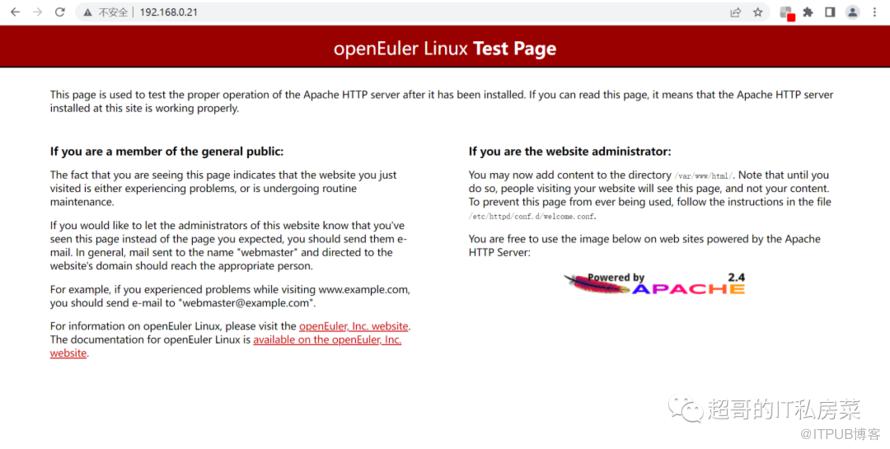
使用Windows系统验证
打开浏览器,在地址栏输入如下地址,如果能正常访问网页,说明httpd服务器搭建成功。
http://192.168.0.21
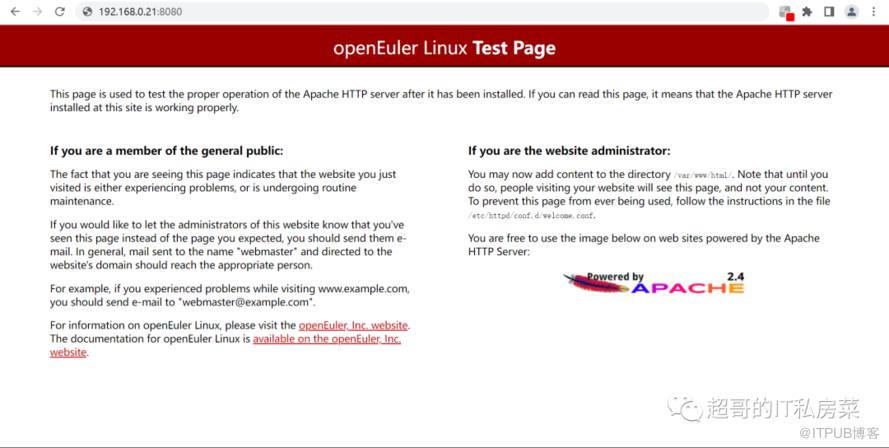
如果修改了端口号,输入地址格式如下:
http://192.168.0.21:端口号
1.6 异常处理
报错信息:
AH00558: httpd: Could not reliably determine the server's fully qualified domain name, using fe80::9393:f6ae:ced9:7759%ens33. Set the 'ServerName' directive globally to suppress this message
解决办法:
修改/etc/httpd/conf/httpd.conf配置文件,设置ServerName配置项;
# vi /etc/httpd/conf/httpd.conf
示例如下:
[root@superman-21 ~]# cat /etc/httpd/conf/httpd.conf
#
# This is the main Apache HTTP server configuration file. It contains the
# configuration directives that give the server its instructions.
# See
# In particular, see
#
# for a discussion of each configuration directive.
#
# Do NOT simply read the instructions in here without understanding
# what they do. They're here only as hints or reminders. If you are unsure
# consult the online docs. You have been warned.
#
# Configuration and logfile names: If the filenames you specify for many
# of the server's control files begin with "/" (or "drive:/" for Win32), the
# server will use that explicit path. If the filenames do *not* begin
# with "/", the value of ServerRoot is prepended -- so 'log/access_log'
# with ServerRoot set to '/www' will be interpreted by the
# server as '/www/log/access_log', where as '/log/access_log' will be
# interpreted as '/log/access_log'.
#
# ServerRoot: The top of the directory tree under which the server's
# configuration, error, and log files are kept.
#
# Do not add a slash at the end of the directory path. If you point
# ServerRoot at a non-local disk, be sure to specify a local disk on the
# Mutex directive, if file-based mutexes are used. If you wish to share the
# same ServerRoot for multiple httpd daemons, you will need to change at
# least PidFile.
#
ServerRoot "/etc/httpd"
#
# Listen: Allows you to bind Apache to specific IP addresses and/or
# ports, instead of the default. See also the
# directive.
#
# Change this to Listen on a specific IP address, but note that if
# httpd.service is enabled to run at boot time, the address may not be
# available when the service starts. See the httpd.service(8) man
# page for more information.
#
#Listen 12.34.56.78:80
Listen 80
#
# Dynamic Shared Object (DSO) Support
#
# To be able to use the functionality of a module which was built as a DSO you
# have to place corresponding `LoadModule' lines at this location so the
# directives contained in it are actually available _before_ they are used.
# Statically compiled modules (those listed by `httpd -l') do not need
# to be loaded here.
#
# Example:
# LoadModule foo_module modules/mod_foo.so
#
Include conf.modules.d/*.conf
#
# If you wish httpd to run as a different user or group, you must run
# httpd as root initially and it will switch.
#
# User/Group: The name (or #number) of the user/group to run httpd as.
# It is usually good practice to create a dedicated user and group for
# running httpd, as with most system services.
#
User apache
Group apache
# 'Main' server configuration
#
# The directives in this section set up the values used by the 'main'
# server, which responds to any requests that aren't handled by a
# definition. These values also provide defaults for
# any containers you may define later in the file.
#
# All of these directives may appear inside containers,
# in which case these default settings will be overridden for the
# virtual host being defined.
#
#
# ServerAdmin: Your address, where problems with the server should be
# e-mailed. This address appears on some server-generated pages, such
# as error documents. e.g. admin@your-domain.com
#
ServerAdmin root@localhost
#
# ServerName gives the name and port that the server uses to identify itself.
# This can often be determined automatically, but we recommend you specify
# it explicitly to prevent problems during startup.
#
# If your host doesn't have a registered DNS name, enter its IP address here.
#
#ServerName www.example.com:80
ServerName 192.168.0.21:80
#
# Deny access to the entirety of your server's filesystem. You must
# explicitly permit access to web content directories in other
# blocks below.
#
AllowOverride none
Require all denied
#
# Note that from this point forward you must specifically allow
# particular features to be enabled - so if something's not working as
# you might expect, make sure that you have specifically enabled it
# below.
#
#
# DocumentRoot: The directory out of which you will serve your
# documents. By default, all requests are taken from this directory, but
# symbolic links and aliases may be used to point to other locations.
#
DocumentRoot "/var/www/html"
#
# Relax access to content within /var/www.
#
"/var/www" >
AllowOverride None
# Allow open access:
Require all granted
# Further relax access to the default document root:
"/var/www/html" >
#
# Possible values for the Options directive are "None", "All",
# or any combination of:
# Indexes Includes FollowSymLinks SymLinksifOwnerMatch ExecCGI MultiViews
#
# Note that "MultiViews" must be named *explicitly* --- "Options All"
# doesn't give it to you.
#
# The Options directive is both complicated and important. Please see
# http://httpd.apache.org/docs/2.4/mod/core.html#options
# for more information.
#
Options Indexes FollowSymLinks
#
# AllowOverride controls what directives may be placed in .htaccess files.
# It can be "All", "None", or any combination of the keywords:
# Options FileInfo AuthConfig Limit
#
AllowOverride None
#
# Controls who can get stuff from this server.
#
Require all granted
#
# DirectoryIndex: sets the file that Apache will serve if a directory
# is requested.
#
DirectoryIndex index.html
#
# The following lines prevent .htaccess and .htpasswd files from being
# viewed by Web clients.
#
".ht*" >
Require all denied
#
# ErrorLog: The location of the error log file.
# If you do not specify an ErrorLog directive within a
# container, error messages relating to that virtual host will be
# logged here. If you *do* define an error logfile for a
# container, that host's errors will be logged there and not here.
#
ErrorLog "logs/error_log"
#
# LogLevel: Control the number of messages logged to the error_log.
# Possible values include: debug, info, notice, warn, error, crit,
# alert, emerg.
#
LogLevel warn
#
# The following directives define some format nicknames for use with
# a CustomLog directive (see below).
#
LogFormat "%h %l %u %t \"%r\" %>s %b \"%{Referer}i\" \"%{User-Agent}i\"" combined
LogFormat "%h %l %u %t \"%r\" %>s %b" common
# You need to enable mod_logio.c to use %I and %O
LogFormat "%h %l %u %t \"%r\" %>s %b \"%{Referer}i\" \"%{User-Agent}i\" %I %O" combinedio
#
# The location and format of the access logfile (Common Logfile Format).
# If you do not define any access logfiles within a
# container, they will be logged here. Contrariwise, if you *do*
# define per- access logfiles, transactions will be
# logged therein and *not* in this file.
#
#CustomLog "logs/access_log" common
#
# If you prefer a logfile with access, agent, and referer information
# (Combined Logfile Format) you can use the following directive.
#
CustomLog "logs/access_log" combined
#
# Redirect: Allows you to tell clients about documents that used to
# exist in your server's namespace, but do not anymore. The client
# will make a new request for the document at its new location.
# Example:
# Redirect permanent /foo http://www.example.com/bar
#
# Alias: Maps web paths into filesystem paths and is used to
# access content that does not live under the DocumentRoot.
# Example:
# Alias /webpath /full/filesystem/path
#
# If you include a trailing / on /webpath then the server will
# require it to be present in the URL. You will also likely
# need to provide a section to allow access to
# the filesystem path.
#
# ScriptAlias: This controls which directories contain server scripts.
# ScriptAliases are essentially the same as Aliases, except that
# documents in the target directory are treated as applications and
# run by the server when requested rather than as documents sent to the
# client. The same rules about trailing "/" apply to ScriptAlias
# directives as to Alias.
#
ScriptAlias /cgi-bin/ "/var/www/cgi-bin/"
#
# "/var/www/cgi-bin" should be changed to whatever your ScriptAliased
# CGI directory exists, if you have that configured.
#
"/var/www/cgi-bin" >
AllowOverride None
Options None
Require all granted
#
# TypesConfig points to the file containing the list of mappings from
# filename extension to MIME-type.
#
TypesConfig /etc/mime.types
#
# AddType allows you to add to or override the MIME configuration
# file specified in TypesConfig for specific file types.
#
#AddType application/x-gzip .tgz
#
# AddEncoding allows you to have certain browsers uncompress
# information on the fly. Note: Not all browsers support this.
#
#AddEncoding x-compress .Z
#AddEncoding x-gzip .gz .tgz
#
# If the AddEncoding directives above are commented-out, then you
# probably should define those extensions to indicate media types:
#
AddType application/x-compress .Z
AddType application/x-gzip .gz .tgz
#
# AddHandler allows you to map certain file extensions to "handlers":
# actions unrelated to filetype. These can be either built into the server
# or added with the Action directive (see below)
#
# To use CGI scripts outside of ScriptAliased directories:
# (You will also need to add "ExecCGI" to the "Options" directive.)
#
#AddHandler cgi-script .cgi
# For type maps (negotiated resources):
#AddHandler type-map var
#
# Filters allow you to process content before it is sent to the client.
#
# To parse .shtml files for server-side includes (SSI):
# (You will also need to add "Includes" to the "Options" directive.)
#
AddType text/html .shtml
AddOutputFilter INCLUDES .shtml
#
# Specify a default charset for all content served; this enables
# interpretation of all content as UTF-8 by default. To use the
# default browser choice (ISO-8859-1), or to allow the META tags
# in HTML content to override this choice, comment out this
# directive:
#
AddDefaultCharset UTF-8
#
# The mod_mime_magic module allows the server to use various hints from the
# contents of the file itself to determine its type. The MIMEMagicFile
# directive tells the module where the hint definitions are located.
#
MIMEMagicFile conf/magic
#
# Customizable error responses come in three flavors:
# 1) plain text 2) local redirects 3) external redirects
#
# Some examples:
#ErrorDocument 500 "The server made a boo boo."
#ErrorDocument 404 /missing.html
#ErrorDocument 404 "/cgi-bin/missing_handler.pl"
#ErrorDocument 402 http://www.example.com/subscription_info.html
#
#
# EnableMMAP and EnableSendfile: On systems that support it,
# memory-mapping or the sendfile syscall may be used to deliver
# files. This usually improves server performance, but must
# be turned off when serving from networked-mounted
# filesystems or if support for these functions is otherwise
# broken on your system.
# Defaults if commented: EnableMMAP On, EnableSendfile Off
#
#EnableMMAP off
EnableSendfile on
# Supplemental configuration
#
# Load config files in the "/etc/httpd/conf.d" directory, if any.
IncludeOptional conf.d/*.conf
[root@superman-21 ~]#
有什么吐槽或反馈意见,直接告诉我!
温馨提示:如出现二维码失效也可直接添加微信号:ysc13803862469。