1 基础环境准备1.1 操作系统版本1.2 关闭防火墙1.3 关闭slinux1.3.1 临时关闭selinux1.3.2 永久关闭selinux1.4 修改 hosts 文件1.5 配置内核参数1.6 配置文件系统描述符1.7 配置PAM2 MySQL 8.0.28二进制安装2.1 环境准备2.1.1 下载MySQL安装包2.1.2 安装MySQL依赖包2.2 安装 MySQL 8.0.282.2.1 本地上传安装包2.2.2 解压安装包2.2.3 拷贝文件到/usr/local/mysql2.2.4 设置环境变量 2.2.5 创建MySQL用户和组 2.2.6 创建相关目录并修改权限 2.2.7 设置配置文件2.2.8 初始化数据(initialize参数的异同) 2.2.8.1 方法一:--initialize 初始化分配管理员一个临时密码2.2.8.1.1 初始化2.2.8.1.2 查看初始化后生成的文件2.2.8.2 方法二:--initialize-insecure 初始化管理员的密码为空2.2.8.2.1 先删除方法一生成的文件2.2.8.2.2 初始化2.2.8.2.3 查看初始化后生成的文件2.2.8.2.4 mysql赋权2.2.9 MySQL服务启动脚本2.3 启动/停止mysql服务 2.3.1 方法一:以脚本方式启动/停止2.3.2 方法二:以sys-v启动/停止2.3.3 方法三:以systemd启动/停止2.3.3.1 设置随系统自动启动2.3.3.2 以systemd启动/停止2.4 查看MySQL服务是否启动2.4.1 方法一:查看端口2.4.2 方法二:查看进程2.4.3 方法三:查看服务状态2.5 登录MySQL
1 基础环境准备
1.1 操作系统版本
CentOS Linux release 7.6.1810 (Core)
cat /etc/redhat-release

1.2 关闭防火墙
systemctl stop firewalld.service && systemctl disable firewalld.service

1.3 关闭slinux
1.3.1 临时关闭selinux
setenforce 0

1.3.2 永久关闭selinux
sed -i 's/=enforcing/=disabled/g' /etc/selinux/config

1.4 修改 hosts 文件
cat >> /etc/hosts << EOF
10.19.68.151    gjdxdb1
EOF

1.5 配置内核参数
cat >>/etc/sysctl.conf <
fs.aio-max-nr = 1048576
fs.file-max = 681574400
kernel.shmmax = 13743895347
kernel.shmmni = 4096
kernel.sem = 250 32000 100 200
net.ipv4.ip_local_port_range = 9000 65000
net.core.rmem_default = 262144
net.core.rmem_max = 4194304
net.core.wmem_default = 262144
net.core.wmem_max = 1048586
EOF

sysctl -p

1.6 配置文件系统描述符
cat >>/etc/security/limits.conf <
mysql soft nproc 65535
mysql hard nproc 65535
mysql soft nofile 65535
mysql hard nofile 65535
EOF

1.7 配置PAM
cat >>/etc/pam.d/login <
session    required     /lib/security/pam_limits.so
session    required     pam_limits.so
EOF

2 MySQL 8.0.28二进制安装
2.1 环境准备
2.1.1 下载MySQL安装包
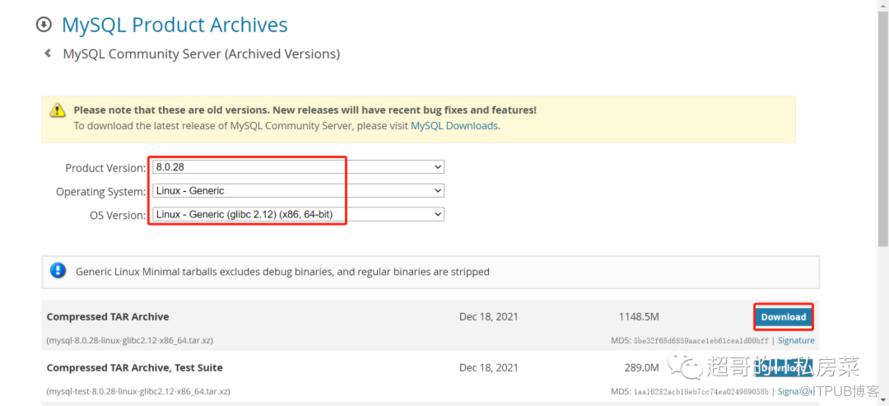
官网下载地址:https://downloads.mysql.com/archives/community/
mysql-8.0.28-linux-glibc2.12-x86_64.tar.xz
2.1.2 安装MySQL依赖包
yum -y install libaio
2.2 安装 MySQL 8.0.28
2.2.1 本地上传安装包
上传至/usr/src目录下:
cd /user/src
ll

2.2.2 解压安装包
tar xf mysql-8.0.28-linux-glibc2.12-x86_64.tar.xz
ll

2.2.3 拷贝文件到/usr/local/mysql
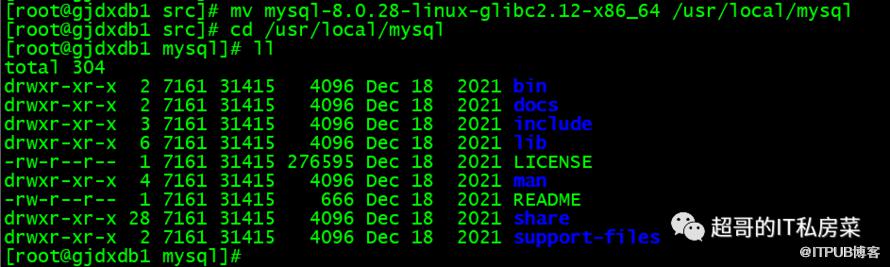
mv mysql-8.0.28-linux-glibc2.12-x86_64 /usr/local/mysql
cd /usr/local/mysql
ll
2.2.4 设置环境变量
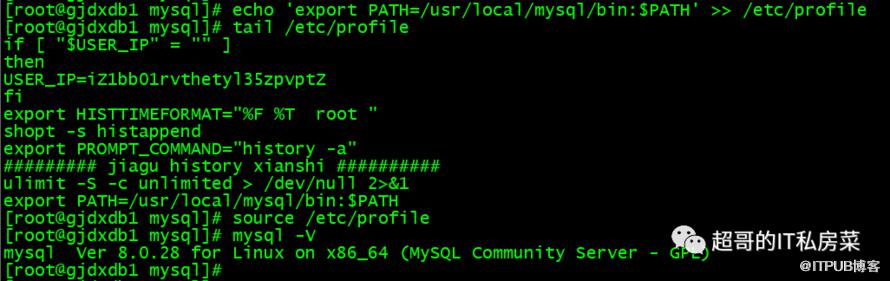
在/etc/profile文件的最后一行添加:export PATH=/usr/local/mysql/bin:$PATH,并使用source命令使得文件生效:
echo 'export PATH=/usr/local/mysql/bin:$PATH' >> /etc/profile
tail /etc/profile
source /etc/profile
mysql -V
2.2.5 创建MySQL用户和组
groupadd mysql
useradd -r -g mysql -s /bin/false mysql
id mysql

2.2.6 创建相关目录并修改权限
mkdir -p /data/mysql/data
mkdir -p /data/mysql/logs
mkdir -p /data/mysql/mysqld
chown -R mysql:mysql /data/mysql

2.2.7 设置配置文件
cat >>/etc/my.cnf <
[client]
default-character-set = GBK
socket=/data/mysql/mysqld/mysql.sock
[mysqld]
port=3306
user=mysql
datadir=/data/mysql/data
basedir=/usr/local/mysql
socket=/data/mysql/mysqld/mysql.sock
character-set-server=GBK
bind-address=0.0.0.0
log-error=/data/mysql/logs/gjdxdb1err.log
pid-file=/data/mysql/mysqld/mysqld.pid
slow_query_log = ON
slow_query_log_file =/data/mysql/logs/gjdxdb1slow.log
innodb_buffer_pool_size = 8G
max_connect_errors = 1000
max_connections = 2048
max_allowed_packet = 1G
wait_timeout = 3600
interactive_timeout = 3600
innodb_log_file_size=1G
innodb_log_buffer_size = 32M
innodb_lock_wait_timeout = 50
#
# Group Replication configuration
#
plugin_load_add='group_replication.so'
loose-group_replication_group_name="47e36f91-a232-47fc-b5a1-37e5e4b8968a"
loose-group_replication_start_on_boot=off
loose-group_replication_local_address= "gjdxdb1:33061"
loose-group_replication_group_seeds= "gjdxdb1:33061,gjdxdb2:33061,gjdxdb3:33061"
innodb_io_capacity = 1000
innodb_io_capacity_max = 2000
innodb_flush_method = O_DIRECT
sort_buffer_size = 4M
join_buffer_size = 2M
open_files_limit = 65535
tmp_table_size = 64M
max_heap_table_size = 500M
thread_cache_size = 1024
thread_stack = 256K
long_query_time = 2
binlog_cache_size = 2M
binlog_expire_logs_seconds = 604800
innodb_temp_data_file_path = ibtmp1:12M:autoextend:max:50G
#
# Disable other storage engines
#
disabled_storage_engines="MyISAM,BLACKHOLE,FEDERATED,ARCHIVE,MEMORY"

#
# Replication configuration parameters
#
server_id=151
gtid_mode=ON
enforce_gtid_consistency=ON
log_bin=binlog
log_replica_updates=ON
binlog_checksum=NONE           # Not needed from 8.0.21
binlog_format=ROW
EOF
2.2.8 初始化数据(initialize参数的异同)
2.2.8.1 方法一:--initialize 初始化分配管理员一个临时密码
2.2.8.1.1 初始化
mysqld --defaults-file=/etc/my.cnf --initialize
tail -n 20 /data/mysql/logs/gjdxdb1err.log

其中一行临时密码信息如下:2022-11-04T15:04:53.482770Z 6 [Note] [MY-010454] [Server] A temporary password is generated for root@localhost: :fkigCGN;4fs
临时密码:fkigCGN;4fs
2.2.8.1.2 查看初始化后生成的文件
ll /data/mysql/data

2.2.8.2 方法二:--initialize-insecure 初始化管理员的密码为空
2.2.8.2.1 先删除方法一生成的文件
rm -rf /data/mysql/data/*
rm -rf /data/mysql/logs/*
ll /data/mysql/data
ll /data/mysql/logs

2.2.8.2.2 初始化
mysqld --defaults-file=/etc/my.cnf --initialize-insecure
tail -n 20 /data/mysql/logs/gjdxdb1err.log

其中一行 临时密码信息如下:
2022-11-04T15:09:46.205665Z 6 [Warning] [MY-010453] [Server] root@localhost is created with an empty password ! Please consider switching off the --initialize-insecure option.
管理员的密码为空。
2.2.8.2.3 查看初始化后生成的文件
ll /data/mysql/data

2.2.8.2.4 mysql赋权
chown -R mysql.mysql /usr/local/mysql
chown -R mysql.mysql /data/mysql

2.2.9 MySQL服务启动脚本
MySQL服务启动脚本为mysql.server,路径:/usr/local/mysql/support-files/mysql.server
cd /usr/local/mysql/support-files
ll

可以将其拷贝到存放系统服务的管理(启动与停止)脚本/etc/init.d目录下:
cp /usr/local/mysql/support-files/mysql.server /etc/init.d/mysqld

2.3 启动/停止mysql服务
2.3.1 方法一:以脚本方式启动/停止
./mysql.server start
./mysql.server stop

或者
sh mysqld.server start
sh mysqld.server stop

2.3.2 方法二:以sys-v启动/停止
service mysqld start
service mysqld stop

2.3.3 方法三:以systemd启动/停止
前提:先将启动脚本拷贝到/etc/init.d目录下,然后通过以下命令:
2.3.3.1 设置随系统自动启动
systemctl enable mysqld

2.3.3.2 以systemd启动/停止
systemctl start mysqld
systemctl stop mysqld

2.4 查看MySQL服务是否启动
启动MySQL
systemctl start mysqld
2.4.1 方法一:查看端口
netstat -tulnp | grep 3306

2.4.2 方法二:查看进程
ps -ef | grep mysql

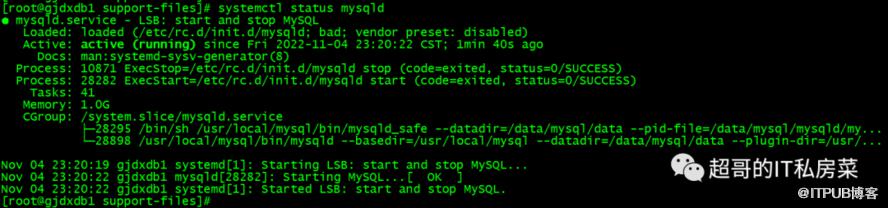
2.4.3 方法三:查看服务状态
systemctl status mysqld
2.5 登录MySQL
因为前面最后是用--initialize-insecure参数初始化数据,管理员密码为空,登陆时在命令行敲入 mysql 然后回车即可登录
mysql

有什么吐槽或反馈意见,直接告诉我!
我会解决您说的问题哦!
温馨提示:如出现二维码失效也可直接添加微信号:ysc13803862469。