/etc/sysctl.conf,配置限制/etc/security/limits.conf,关闭SELINUX 等相关的操作),这些步骤在安装oracle软件的时候就已经配置过。
本实验主要是将新添加进来的四块磁盘设备进行udev设备映射,加入ASM,并安装ASM(数据库实例为单实例)。
1.查看新增的四块磁盘设备
点击(此处)折叠或打开
-
[root@LINUX10 ~]# fdisk -l
-
-
Disk /dev/sda: 32.2 GB, 32212254720 bytes
-
255 heads, 63 sectors/track, 3916 cylinders
-
Units = cylinders of 16065 * 512 = 8225280 bytes
-
Sector size (logical/physical): 512 bytes / 512 bytes
-
I/O size (minimum/optimal): 512 bytes / 512 bytes
-
Disk identifier: 0x000915be
-
-
Device Boot Start End Blocks Id System
-
/dev/sda1 1 383 3072000 82 Linux swap / Solaris
-
Partition 1 does not end on cylinder boundary.
-
/dev/sda2 * 383 3917 28384256 83 Linux
-
-
Disk /dev/sdb: 10.7 GB, 10737418240 bytes
-
255 heads, 63 sectors/track, 1305 cylinders
-
Units = cylinders of 16065 * 512 = 8225280 bytes
-
Sector size (logical/physical): 512 bytes / 512 bytes
-
I/O size (minimum/optimal): 512 bytes / 512 bytes
-
Disk identifier: 0x00000000
-
-
-
Disk /dev/sdc: 10.7 GB, 10737418240 bytes
-
255 heads, 63 sectors/track, 1305 cylinders
-
Units = cylinders of 16065 * 512 = 8225280 bytes
-
Sector size (logical/physical): 512 bytes / 512 bytes
-
I/O size (minimum/optimal): 512 bytes / 512 bytes
-
Disk identifier: 0x00000000
-
-
-
Disk /dev/sdd: 10.7 GB, 10737418240 bytes
-
255 heads, 63 sectors/track, 1305 cylinders
-
Units = cylinders of 16065 * 512 = 8225280 bytes
-
Sector size (logical/physical): 512 bytes / 512 bytes
-
I/O size (minimum/optimal): 512 bytes / 512 bytes
-
Disk identifier: 0x00000000
-
-
-
Disk /dev/sde: 10.7 GB, 10737418240 bytes
-
255 heads, 63 sectors/track, 1305 cylinders
-
Units = cylinders of 16065 * 512 = 8225280 bytes
-
Sector size (logical/physical): 512 bytes / 512 bytes
-
I/O size (minimum/optimal): 512 bytes / 512 bytes
- Disk identifier: 0x00000000
点击(此处)折叠或打开
-
[root@LINUX10 ~]# fdisk /dev/sdb
-
Device contains neither a valid DOS partition table, nor Sun, SGI or OSF disklabel
-
Building a new DOS disklabel with disk identifier 0x7bbbac09.
-
Changes will remain in memory only, until you decide to write them.
-
After that, of course, the previous content won\'t be recoverable.
-
-
Warning: invalid flag 0x0000 of partition table 4 will be corrected by w(rite)
-
-
WARNING: DOS-compatible mode is deprecated. It\'s strongly recommended to
-
switch off the mode (command \'c\') and change display units to
-
sectors (command \'u\').
-
-
Command (m for help): n
-
Command action
-
e extended
-
p primary partition (1-4)
-
p
-
Partition number (1-4): 1
-
First cylinder (1-1305, default 1):
-
Using default value 1
-
Last cylinder, +cylinders or +size{K,M,G} (1-1305, default 1305):
-
Using default value 1305
-
-
Command (m for help): w
-
The partition table has been
-
-
Calling ioctl() to re-read partition table.
-
Syncing disks.
-
[root@LINUX10 ~]# fdisk /dev/sdc
-
Device contains neither a valid DOS partition table, nor Sun, SGI or OSF disklabel
-
Building a new DOS disklabel with disk identifier 0x0138acd7.
-
Changes will remain in memory only, until you decide to write them.
-
After that, of course, the previous content won't be recoverable.
-
-
Warning: invalid flag 0x0000 of partition table 4 will be corrected by w(rite)
-
-
WARNING: DOS-compatible mode is deprecated. It\'s strongly recommended to
-
switch off the mode (command 'c') and change display units to
-
sectors (command 'u').
-
-
Command (m for help): n
-
Command action
-
e extended
-
p primary partition (1-4)
-
p
-
Partition number (1-4): 1
-
First cylinder (1-1305, default 1):
-
Using default value 1
-
Last cylinder, +cylinders or +size{K,M,G} (1-1305, default 1305):
-
Using default value 1305
-
-
Command (m for help): w
-
The partition table has been
-
-
Calling ioctl() to re-read partition table.
-
Syncing disks.
-
[root@LINUX10 ~]# fdisk /dev/sdd
-
Device contains neither a valid DOS partition table, nor Sun, SGI or OSF disklabel
-
Building a new DOS disklabel with disk identifier 0x39f7dc94.
-
Changes will remain in memory only, until you decide to write them.
-
After that, of course, the previous content won\'t be recoverable.
-
-
Warning: invalid flag 0x0000 of partition table 4 will be corrected by w(rite)
-
-
WARNING: DOS-compatible mode is deprecated. It\'s strongly recommended to
-
switch off the mode (command \'c\') and change display units to
-
sectors (command \'u\').
-
-
Command (m for help): n
-
Command action
-
e extended
-
p primary partition (1-4)
-
p
-
Partition number (1-4): 1
-
First cylinder (1-1305, default 1):
-
Using default value 1
-
Last cylinder, +cylinders or +size{K,M,G} (1-1305, default 1305):
-
Using default value 1305
-
-
Command (m for help): w
-
The partition table has been
-
-
Calling ioctl() to re-read partition table.
-
Syncing disks.
-
[root@LINUX10 ~]# fdisk /dev/sde
-
Device contains neither a valid DOS partition table, nor Sun, SGI or OSF disklabel
-
Building a new DOS disklabel with disk identifier 0x76d993a3.
-
Changes will remain in memory only, until you decide to write them.
-
After that, of course, the previous content won\'t be recoverable.
-
-
Warning: invalid flag 0x0000 of partition table 4 will be corrected by w(rite)
-
-
WARNING: DOS-compatible mode is deprecated. It\'s strongly recommended to
-
switch off the mode (command \'c\') and change display units to
-
sectors (command \'u\').
-
-
Command (m for help): n
-
Command action
-
e extended
-
p primary partition (1-4)
-
p
-
Partition number (1-4): 1
-
First cylinder (1-1305, default 1):
-
Using default value 1
-
Last cylinder, +cylinders or +size{K,M,G} (1-1305, default 1305):
-
Using default value 1305
-
-
Command (m for help): w
-
The partition table has been
-
-
Calling ioctl() to re-read partition table.
- Syncing disks.
[root@LINUX10 ~]# fdisk -l
3.UDEV绑定
为什么使用udev:
*不确定的设备映射。特别是那些动态设备,比如USB设备,设备文件到实际设备的映射并不可靠和确定。举一个例子:如果你有两个USB打印机。一个可能称 为/dev/usb/lp0,另外一个便是/dev/usb/lp1。但是到底哪个是哪个并不清楚,lp0,lp1和实际的设备没有一一对应的关系,因为 他可能因为发现设备的顺序,打印机本身关闭等原因而导致这种映射并不确定。理想的方式应该是:两个打印机应该采用基于他们的序列号或者其他标识信息的唯一 设备文件来映射。但是静态文件和devfs都无法做到这点。
1).获取磁盘的scsi_id
-
[root@LINUX10 ~]# /sbin/scsi_id -g -u -d /dev/sdb
-
1ATA_VBOX_HARDDISK_VBc3828ca9-05a29ba0
-
[root@LINUX10 ~]# /sbin/scsi_id -g -u -d /dev/sdc
-
1ATA_VBOX_HARDDISK_VB05afa31c-5e0063bb
-
[root@LINUX10 ~]# /sbin/scsi_id -g -u -d /dev/sdd
-
1ATA_VBOX_HARDDISK_VB0af408e0-e18869b2
-
[root@LINUX10 ~]# /sbin/scsi_id -g -u -d /dev/sde
- 1ATA_VBOX_HARDDISK_VB9ca80215-921bc473
在/etc/scsi_id.config的结尾添加下面的内容,如果文件不存在就创建它
options=-g
3).创建UDEV规则文件
创建/etc/udev/rules.d/99-oracle-asmdevices.rules , 增加以下数据
KERNEL=="sd?1", BUS=="scsi", PROGRAM=="/sbin/scsi_id -g -u -d /dev/$parent", RESULT=="1ATA_VBOX_HARDDISK_VBc3828ca9-05a29ba0", NAME="asm-disk1", OWNER="oracle", GROUP="dba", MODE="0660"
KERNEL=="sd?1", BUS=="scsi", PROGRAM=="/sbin/scsi_id -g -u -d /dev/$parent", RESULT=="1ATA_VBOX_HARDDISK_VB05afa31c-5e0063bb", NAME="asm-disk2", OWNER="oracle", GROUP="dba", MODE="0660"
KERNEL=="sd?1", BUS=="scsi", PROGRAM=="/sbin/scsi_id -g -u -d /dev/$parent", RESULT=="1ATA_VBOX_HARDDISK_VB0af408e0-e18869b2", NAME="asm-disk3", OWNER="oracle", GROUP="dba", MODE="0660"
KERNEL=="sd?1", BUS=="scsi", PROGRAM=="/sbin/scsi_id -g -u -d /dev/$parent", RESULT=="1ATA_VBOX_HARDDISK_VB9ca80215-921bc473", NAME="asm-disk4", OWNER="oracle", GROUP="dba", MODE="0660"
注意,这里的RESULT参数后面的字符串即为 scsi_id 号,要做好对应关系
-
[root@LINUX10 ~]# /sbin/partprobe /dev/sdb1
-
[root@LINUX10 ~]# /sbin/partprobe /dev/sdc1
-
[root@LINUX10 ~]# /sbin/partprobe /dev/sdd1
- [root@LINUX10 ~]# /sbin/partprobe /dev/sde1
-
[root@LINUX10 rules.d]# /sbin/udevadm control --reload-rules
-
[root@LINUX10 rules.d]# /sbin/start_udev
- Starting udev: [ OK ]
-
[root@LINUX10 ~]# ls -la /dev/asm*
-
brw-rw----. 1 oracle dba 8, 17 Apr 11 14:24 /dev/asm-disk1
-
brw-rw----. 1 oracle dba 8, 33 Apr 11 14:24 /dev/asm-disk2
-
brw-rw----. 1 oracle dba 8, 49 Apr 11 14:24 /dev/asm-disk3
- brw-rw----. 1 oracle dba 8, 65 Apr 11 14:24 /dev/asm-disk4
在设置环境变量之前,先创建grid_home 的目录
[oracle@LINUX10 ~]$ mkdir /u01/app/grid
1)设置oracle用户的环境变量
-
# .bash_profile
-
-
# Get the aliases and functions
-
if [ -f ~/.bashrc ]; then
-
. ~/.bashrc
-
fi
-
-
# User specific environment and startup programs
-
-
PATH=$PATH:$HOME/bin
-
-
export ORACLE_BASE=/u01/app/oracle
- export ORACLE_HOME=$ORACLE_BASE/product/11.2.3/oracle
- export DB_HOME=$ORACLE_BASE/product/11.2.3/oracle
-
export ORACLE_SID=orcl
-
-
export GRID_HOME=/u01/app/grid
-
export PATH=$ORACLE_HOME/bin:$PATH
-
-
alias grid_env='. /home/oracle/grid_env'
-
alias db_env='. /home/oracle/db_env'
-
-
alias sqlplus='rlwrap sqlplus'
-
alias rman='rlwrap rman'
- alias lsnrctl='rlwrap lsnrctl'
2)配置grid_env
配置该文件是方便在oracle用户的环境变量中配置了alias grid_env='. /home/oracle/grid_env' 而直接引用grid_env就可以方便的切换到ASM实例的环境
-
[oracle@LINUX10 ~]$ touch /home/oracle/grid_env
-
-
[oracle@LINUX10 ~]$ more grid_env
-
export ORACLE_SID=+ASM;
-
export ORACLE_HOME=$GRID_HOME;
-
export PATH=$PATH:$ORACLE_HOME/bin:$BASE_PATH;
-
-
export LD_LIBRARY_PATH=$ORACLE_HOME/lib:/lib:/usr/lib;
- export CLASSPATH=$ORACLE_HOME/JRE:$ORACLE_HOME/jlib:$ORACLE_HOME/rdbms/jlib
同grid_env设置一样,调用db_env方便切换到oracle实例的环境变量
- [oracle@LINUX10 ~]$ touch /home/oracle/db_env
-
[oracle@LINUX10 ~]$ more db_env
-
export ORACLE_SID=orcl;
export ORACLE_HOME=$DB_HOME;
export PATH=$PATH:$ORACLE_HOME/bin:$BASE_PATH;
export LD_LIBRARY_PATH=$ORACLE_HOME/lib:/lib:/usr/lib;
export CLASSPATH=$ORACLE_HOME/JRE:$ORACLE_HOME/jlib:$ORACLE_HOME/rdbms/jlib;
[oracle@LINUX10 ~]$ source .bash_profile
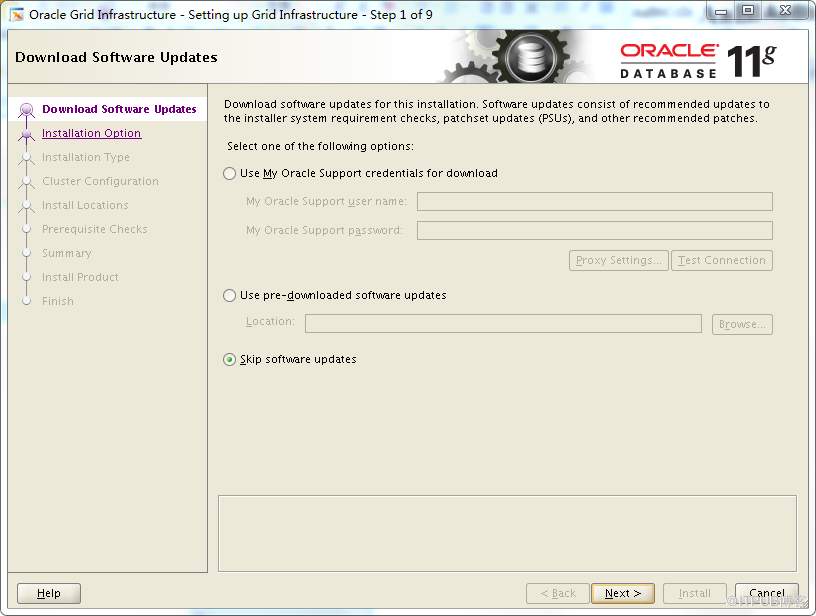
将安装介质拷贝到服务器,进行解压,运行压缩包中的 runInstaller.sh文件 ,下面是一些安装的截图
step1:选择跳过,next
'
step2:选择standalone server,选择next

step3:此步骤选择英文,next

step4:这里磁盘组命名为DATA, 冗余策略为正常冗余(High即为高度冗余,冗余数据有三份,即使坏了一份,还有两份是冗余的; Normal正常冗余,冗余数据有两份,坏掉一份,还有一份是可以用的; External外部冗余,在外部设备已经做了冗余,不需要在ASM中再做冗余策略了),AU Size是ASM每次分配的最小单位,安装的时候,磁盘组DATA只选择两个磁盘,可以做正常冗余

step5:这里设置ASM的密码,后面在ASM上安装oracle实例的时候要用到的

step6:选择相关的组


step8:进行一些的验证,缺包的要安装包

step9:

step10:安装过程中,有段脚本需要用root的用户执行的
