先放个链接,万一有人关注呢
优质文章推荐
↓ ↓ ↓ ↓ ↓
通常在给服务器添加新磁盘时,运维人员将对新磁盘进行分区规划,从而更好地利用磁盘空间。常见的磁盘分区方式有两种,分别是MBR与GPT,下面将讲解这两种磁盘分区的具体方式。
1.MBR
MBR(Main Boot Record,即主引导记录),是一种应用较早的磁盘分区方式。通常磁盘是以扇区为单位进行分区,磁盘第一个扇区中包含一个大小为64B的磁盘分区表,而磁盘也拥有4个基础分区,所以磁盘分区表中储存了4个基础分区的信息,每个分区的信息占用16B。即使磁盘拥有多余的空间,也无法再增加基础分区,如图所示。

除了4个基础分区外,MBR可以利用剩余空间创建出一个扩展空间,但扩展空间是不可以直接使用的。通过扩展空间,可以创建出一个或多个逻辑空间,而逻辑空间是可以直接存储内容的,如图所示。
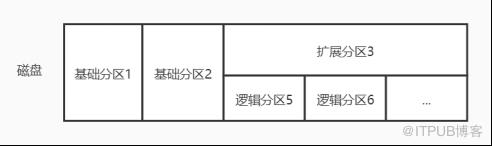
在MBR分区中,逻辑分区的编号必然是从5开始,因为编号1至4是预留给基础分区的,即使基础分区的数量不足4个。另外,扩展分区的磁盘分区表储存在扩展分区的第一个扇区中。
通过fdisk命令可以对磁盘进行MBR分区,其常用参数如下所示。
-l:列出所有分区表
-s:显示磁盘分区大小
-b:设置扇区大小
(1) 查看磁盘信息
下面将演示fdisk命令的简单使用方式,示例代码如下。
[]20971520[]磁盘 /dev/sda:21.5 GB, 21474836480 字节,41943040 个扇区Units = 扇区 of 1 * 512 = 512 bytes扇区大小(逻辑/物理):512 字节 / 512 字节I/O 大小(最小/最佳):512 字节 / 512 字节磁盘标签类型:dos磁盘标识符:0x000d84a9设备 Boot Start End Blocks Id System/dev/sda1 * 2048 2099199 1048576 83 Linux/dev/sda2 2099200 41943039 19921920 8e Linux LVM
上述示例中可以看到,本地磁盘/dev/sda总共20971520B(20G)大小的空间,有41943040个扇区,且分为两个基础分区。
(2) 创建分区
以上只是对于磁盘的简单管理,下面通过“fdisk 磁盘”命令进入交互界面,并根据提示执行m命令,示例代码如下。
[root@localhost ~]# fdisk /dev/sda欢迎使用 fdisk (util-linux 2.23.2)。更改将停留在内存中,直到您决定将更改写入磁盘。使用写入命令前请三思。命令(输入 m 获取帮助):m命令操作a toggle a bootable flagb edit bsd disklabelc toggle the dos compatibility flagd delete a partitiong create a new empty GPT partition tableG create an IRIX (SGI) partition tablel list known partition typesm print this menun add a new partitiono create a new empty DOS partition tablep print the partition tableq quit without saving changess create a new empty Sun disklabelt change a partition's system idu change display/entry unitsv verify the partition tablew write table to disk and exitx extra functionality (experts only)
上述示例中是fdisk命令储存管理的帮助信息。
如果此时磁盘剩余空间已经不足,可以在fdisk的交互界面中删除一个分区,示例代码如下。
#输入d进行分区删除命令(输入 m 获取帮助):d#选择需要删除的分区号分区号 (1,2,默认 2):分区 2 已删除
有了足够的磁盘剩余空间之后,创建一个扩展分区,示例代码如下。
#输入n开始创建分区命令(输入 m 获取帮助):n#选择分区类型Partition type:#创建主分区p primary (1 primary, 0 extended, 3 free)#创建扩展分区e extendedSelect (default p): e分区号 (2-4,默认 2):起始 扇区 (2099200-41943039,默认为 2099200):将使用默认值 2099200#将扩展分区配置为100MB大小Last 扇区, +扇区 or +size{K,M,G} (2099200-41943039,默认为 41943039):+1G分区 2 已设置为 Extended 类型,大小设为 100 MiB
上述示例中已经创建了一个大小为1G的扩展分区。
接着通过刚刚创建的扩展分区创建两个逻辑分区,示例代码如下。
命令(输入 m 获取帮助):nPartition type:p primary (1 primary, 1 extended, 2 free)#添加逻辑分区l logical (numbered from 5)Select (default p): l添加逻辑分区 5起始 扇区 (2101248-2303999,默认为 2101248):将使用默认值 2101248Last 扇区, +扇区 or +size{K,M,G} (2101248-2303999,默认为 2303999):+400M分区 5 已设置为 Linux 类型,大小设为 400 MiB#注意此时扩展分区已经使用了400MB命令(输入 m 获取帮助):nPartition type:p primary (1 primary, 1 extended, 2 free)l logical (numbered from 5)Select (default p): l添加逻辑分区 6起始 扇区 (2922496-4196351,默认为 2922496):将使用默认值 2922496Last 扇区, +扇区 or +size{K,M,G} (2922496-4196351,默认为 4196351):将使用默认值 4196351分区 6 已设置为 Linux 类型,大小设为 622 MiB
上述示例中,进行了两次逻辑分区,第一次逻辑分区给5号分区配置了400M的空间,第二次逻辑分区给6号分区配置空间时使用了默认值,将扩展分区中所有空间都分配给了该逻辑分区。
(3) 查看分区结果
接着查看当前磁盘信息,示例代码如下。
命令(输入 m 获取帮助):p磁盘 /dev/sda:21.5 GB, 21474836480 字节,41943040 个扇区Units = 扇区 of 1 * 512 = 512 bytes扇区大小(逻辑/物理):512 字节 / 512 字节I/O 大小(最小/最佳):512 字节 / 512 字节磁盘标签类型:dos磁盘标识符:0x000d84a9设备 Boot Start End Blocks Id System/dev/sda1 * 2048 2099199 1048576 83 Linux/dev/sda2 2099200 4196351 1048576 5 Extended/dev/sda5 2101248 2920447 409600 83 Linux/dev/sda6 2922496 4196351 636928 83 Linux
上述示例中可以看到,此时在磁盘中除了基础分区与扩展分区之外,还有两个刚刚创建的逻辑分区。
(4) 退出界面
配置完磁盘分区之后,在交互界面中执行w即可保存当前配置并退出,如果执行q,则不保存配置直接退出。此处将配置保存并退出,示例代码如下。
命令(输入 m 获取帮助):wThe partition table has been altered!Calling ioctl() to re-read partition table.WARNING: Re-reading the partition table failed with error 16: 设备或资源忙.The kernel still uses the old table. The new table will be used atthe next reboot or after you run partprobe(8) or kpartx(8)正在同步磁盘。[root@localhost ~]#
(5) 启用分区
在物理服务器中,即使保存了磁盘区分的配置,但刚刚创建的逻辑分区还处于未启用的状态。此时,可以通过partprobe命令使内核强制读取分区表,启用逻辑分区,示例代码如下。
partprobe /dev/sda
MBR是一款比较便捷的磁盘分区方式,但其缺点是无法对2T以上的磁盘进分区,如果磁盘容量超过2T,则最多使用2T的容量。
2.GPT
GTP(GUID Partition Table,即全局唯一标识分区表),是一种较新的磁盘分区方式,不仅能够兼容MBR,还支持对2T以上的磁盘进行分区,但这种分区方式只支持64位操作系统。
gdisk又叫GPT fdisk,相当于fdisk的升级版,主要用于GPT分区类型,用来划分容量大于2T的磁盘。
下面进入gdisk工具的交互界面并执行“?”,查看gdisk工具的帮助信息,示例代码如下。
~]# gdisk /dev/sdaGPT fdisk (gdisk) version 0.8.10Partition table scan:MBR: MBR onlyBSD: not presentAPM: not presentGPT: not present***************************************************************Found invalid GPT and valid MBR; converting MBR to GPT formatin memory. THIS OPERATION IS POTENTIALLY DESTRUCTIVE! Exit bytyping 'q' if you don't want to convert your MBR partitionsto GPT format!***************************************************************Secondary partition table overlaps the last partition by33 blocks!You will need to delete this partition or resize it in another utility.Command (? for help): ?b back up GPT data to a filec change a partition's named delete a partitioni show detailed information on a partitionl list known partition typesn add a new partitiono create a new empty GUID partition table (GPT)p print the partition tableq quit without saving changesr recovery and transformation options (experts only)s sort partitionst change a partition's type codev verify diskw write table to disk and exitx extra functionality (experts only)print this menu
如果此时磁盘剩余空间已经不足,可以在fdisk的交互界面中删除一个分区,示例代码如下。
#查看当前磁盘分区Command (? for help): pDisk /dev/sda: 41943040 sectors, 20.0 GiBLogical sector size: 512 bytesDisk identifier (GUID): DDFF9FBA-65BC-45B3-85A9-1B43C405696FPartition table holds up to 128 entriesFirst usable sector is 34, last usable sector is 41943006Partitions will be aligned on 2048-sector boundariesTotal free space is 2014 sectors (1007.0 KiB)Number Start (sector) End (sector) Size Code Name1 2048 2099199 1024.0 MiB 8300 Linux filesystem2 2099200 41943039 19.0 GiB 8E00 Linux LVMCommand (? for help): d#此时选择删除2号分区Partition number (1-2): 2#查看删除结果Command (? for help): pDisk /dev/sda: 41943040 sectors, 20.0 GiBLogical sector size: 512 bytesDisk identifier (GUID): DDFF9FBA-65BC-45B3-85A9-1B43C405696FPartition table holds up to 128 entriesFirst usable sector is 34, last usable sector is 41943006Partitions will be aligned on 2048-sector boundariesTotal free space is 39845821 sectors (19.0 GiB)Number Start (sector) End (sector) Size Code Name1 2048 2099199 1024.0 MiB 8300 Linux filesystem
有了足够的磁盘剩余空间之后,创建一个分区,示例代码如下。
Command (? for help): nPartition number (2-128, default 2):First sector (34-41943006, default = 2099200) or {+-}size{KMGTP}:Last sector (2099200-41943006, default = 41943006) or {+-}size{KMGTP}: +1GCurrent type is 'Linux filesystem'Hex code or GUID (L to show codes, Enter = 8300):Changed type of partition to 'Linux filesystem'
上述示例中,执行n即可进行创建基础分区,无需选择分区类型,此处创建了一个1G大小的分区。
创捷完成之后,查看创建结果,示例代码如下。
Command (? for help): pDisk /dev/sda: 41943040 sectors, 20.0 GiBLogical sector size: 512 bytesDisk identifier (GUID): DDFF9FBA-65BC-45B3-85A9-1B43C405696FPartition table holds up to 128 entriesFirst usable sector is 34, last usable sector is 41943006Partitions will be aligned on 2048-sector boundariesTotal free space is 37748669 sectors (18.0 GiB)Number Start (sector) End (sector) Size Code Name1 2048 2099199 1024.0 MiB 8300 Linux filesystem2 2099200 4196351 1024.0 MiB 8300 Linux filesystem
上述示例中可以看到,此时分区已经创建完成。
接着执行w保存当前配置,示例代码如下。
Command (? for help): wFinal checks complete. About to write GPT data. THIS WILL OVERWRITE EXISTINGPARTITIONS!!Do you want to proceed? (Y/N): yOK; writing new GUID partition table (GPT) to /dev/sda.Warning: The kernel is still using the old partition table.The new table will be used at the next reboot.The operation has completed successfully.
上述示例中在执行w时,交互界面中出现了是否覆盖已存在分区的询问,然后执行y即可保存配置。
分区配置保存完成之后,可以通过partprobe命令使内核强制读取分区表,启用分区。
3.格式化
格式化是将磁盘或磁盘分区中的内容进行初始化的一种操作,通常会删除磁盘中的全部内容。在运维工作中的格式化通常是指对磁盘中文件的储存方式,即组织文件系统的格式进行定义。
mkfs是Linux操作系统中用于格式化磁盘的命令,在终端中输入mkfs命令,并连续按两次Tab键即可查看当前系统中的所有文件系统的类型,示例代码如下。
[root@localhost ~]# mkfsmkfs mkfs.cramfs mkfs.ext3 mkfs.minixmkfs.btrfs mkfs.ext2 mkfs.ext4 mkfs.xfs
然后使用ext4文件系统格式对/dev/sdb1进行格式化,示例代码如下。
~]# mkfs.ext4 /dev/sdb1mke2fs 1.42.9 (28-Dec-2013)Filesystem label=OS type: LinuxBlock size=1024 (log=0)Fragment size=1024 (log=0)Stride=0 blocks, Stripe width=0 blocks25688 inodes, 102400 blocks5120 blocks (5.00%) reserved for the super userFirst data block=1Maximum filesystem blocks=3368550413 block groups8192 blocks per group, 8192 fragments per group1976 inodes per groupSuperblock backups stored on blocks:24577, 40961, 57345, 73729Allocating group tables: doneWriting inode tables: doneCreating journal (4096 blocks): doneWriting superblocks and filesystem accounting information: done
上述示例中,块表示文件存储中最小的单位,即使文件不足1K,仍然会占用1K的空间。sdb1分区的大小为100M,所以有102400个块。
下面使用xfs文件系统格式对sdb2进行格式化,示例代码如下。
[root@localhost ~]# mkfs.xfs /dev/sdb2meta-data=/dev/sdb3 isize=512 agcount=4, agsize=12800 blks= sectsz=512 attr=2, projid32bit=1= crc=1 finobt=0, sparse=0data = bsize=4096 blocks=51200, imaxpct=25= sunit=0 swidth=0 blksnaming =version 2 bsize=4096 ascii-ci=0 ftype=1log =internal log bsize=4096 blocks=855, version=2= sectsz=512 sunit=0 blks, lazy-count=1realtime =none extsz=4096 blocks=0, rtextents=0
上述示例中可以看到,使用不同格式进行格式化的执行结果显示形式有所不同,但数据方面基本上是相同的。
来不及解释了,快上车!(进群看公告)

欢迎新的小伙伴加入!在这里,我们鼓励大家积极参与群内讨论和交流,分享自己的见解和经验,一起学习和成长。同时,也欢迎大家提出问题和建议,让我们不断改进和完善这个平台。
↓↓↓ 点个在看,无需赞赏!